
Business
Fatal Device Hardware Error: Common Causes and Fixes
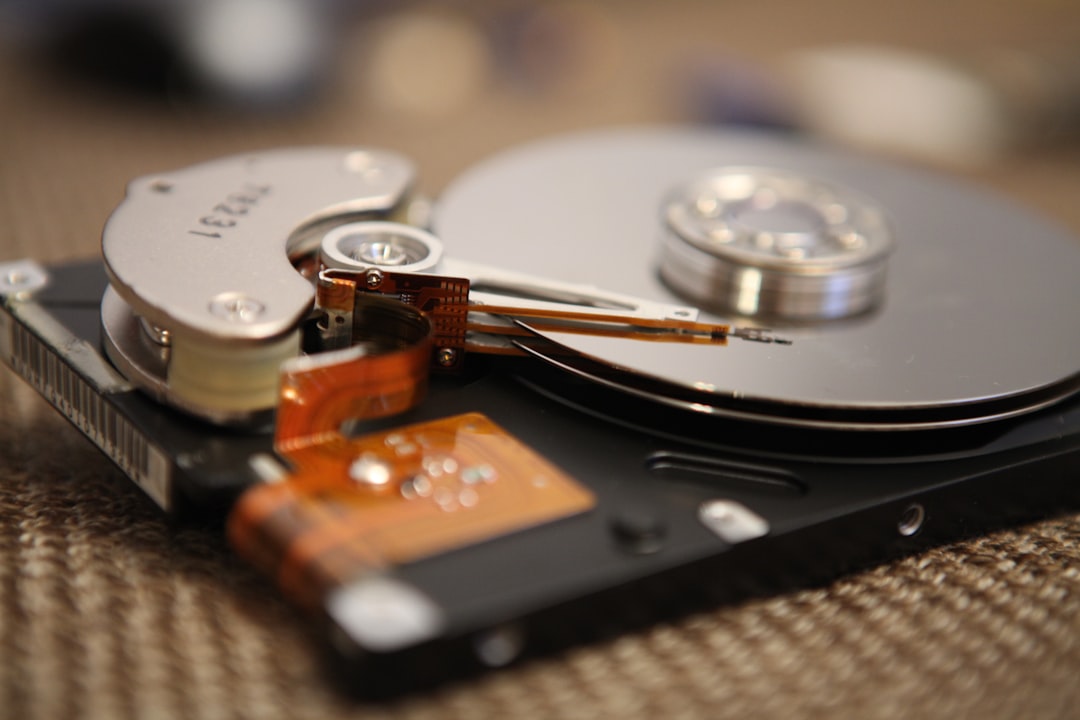
Encountering a Fatal Device Hardware Error can be both alarming and frustrating, especially when it seemingly appears out of nowhere. This error usually occurs when a hard drive or SSD faces issues at the hardware level, preventing users from accessing or reading data. Although it sounds severe, this error doesn’t always mean the drive is entirely unrecoverable. Understanding the root causes and knowing how to troubleshoot them can help users either resolve the issue or take proper recovery actions.
What Does “Fatal Device Hardware Error” Mean?
This error commonly appears in Windows operating systems when the system is unable to read or write data to the storage device. The full message typically reads: “The request failed due to a fatal device hardware error.” It can occur when trying to open files, boot up the computer, or access a secondary storage device such as an external hard drive.
[ai-img]hard drive damage, data recovery, device error[/ai-img]
Common Causes of Fatal Device Hardware Errors
Several factors can trigger this serious system-level fault. Below are the most prevalent causes:
- Hardware Damage: Physical damage to internal or external hard drives is one of the primary reasons. This could be due to accidental drops, shocks, or exposure to magnetic fields.
- Power Surges: Sudden electricity surges can corrupt drives or damage internal hardware components.
- Bad Sectors: Drives often fail due to an accumulation of bad sectors that make data unreadable or inaccessible.
- Driver Issues: Outdated, incompatible, or corrupted drivers can prevent the system from communicating effectively with hardware.
- Loose or Damaged Cables: Improper or broken cable connections may lead to incomplete data transmission, causing system errors.
- Firmware Problems: Malfunctioning or outdated firmware in SSDs can sometimes mimic or lead to hardware error messages.
How to Fix Fatal Device Hardware Errors
While hardware issues might sound terminal, in many cases, the problem lies in the interface between hardware and software. Consider the following fixes before assuming total drive failure:
1. Check Physical Connections
Start with the basics. Ensure all cables connecting the drive to the computer are secure and undamaged. Try using a different USB or SATA port if you’re working with an external or secondary internal drive.
2. Update or Reinstall Drivers
Driver conflicts can lead to hardware read errors. Access Device Manager in Windows, find the problematic drive, right-click, and select “Update Driver.” If that doesn’t resolve it, try uninstalling and then rebooting the system to let Windows reinstall it automatically.
3. Use CHKDSK Utility
CHKDSK helps diagnose and fix logical file system errors and bad sectors. Open Command Prompt as administrator and type:
chkdsk /f /r X:
Replace X: with the actual drive letter.
4. Try the Drive on Another Computer
This helps determine whether the issue lies with the drive or the host hardware. If the error doesn’t appear on another device, the problem may be with the original system’s motherboard or connections.
[ai-img]troubleshooting, chkdsk command, fixing hard drive[/ai-img]
5. Use Manufacturer Tools
Many hard drive manufacturers offer dedicated diagnostic tools (e.g., Seagate SeaTools, WD Data Lifeguard). These can check health status and offer low-level fixes that CHKDSK or other standard tools might miss.
6. Professional Data Recovery
If the drive is making clicking noises, not spinning, or entirely unresponsive, the damage may be physical and irreversible through common software methods. Contacting a data recovery specialist is advisable in such scenarios.
FAQs About Fatal Device Hardware Errors
- Q: Does a fatal device hardware error mean my drive is dead?
A: Not necessarily. It could be a logical or connection issue. Performing diagnostics can help pinpoint the exact problem. - Q: Can I still recover data from a drive showing this error?
A: Yes, if the drive is still recognized by the system. Using data recovery tools or services can retrieve important files. - Q: Should I replace the drive immediately?
A: If diagnostics reveal physical damage or numerous bad sectors, replacement is recommended. Back up data as soon as possible if retrieval is still possible. - Q: What’s the best way to avoid this error in the future?
A: Regular backups, safe ejection of drives, using surge protectors, and keeping firmware and drivers updated are effective preventive measures.
While facing a fatal device hardware error can be overwhelming, a structured diagnostic approach often provides clarity and resolution. Whether it’s a simple cable issue or a sign of failing hardware, understanding the signs and applying timely fixes can significantly reduce the impact of such errors.
