

Business
How to Fix Failed to Terminate VRServer.exe Error

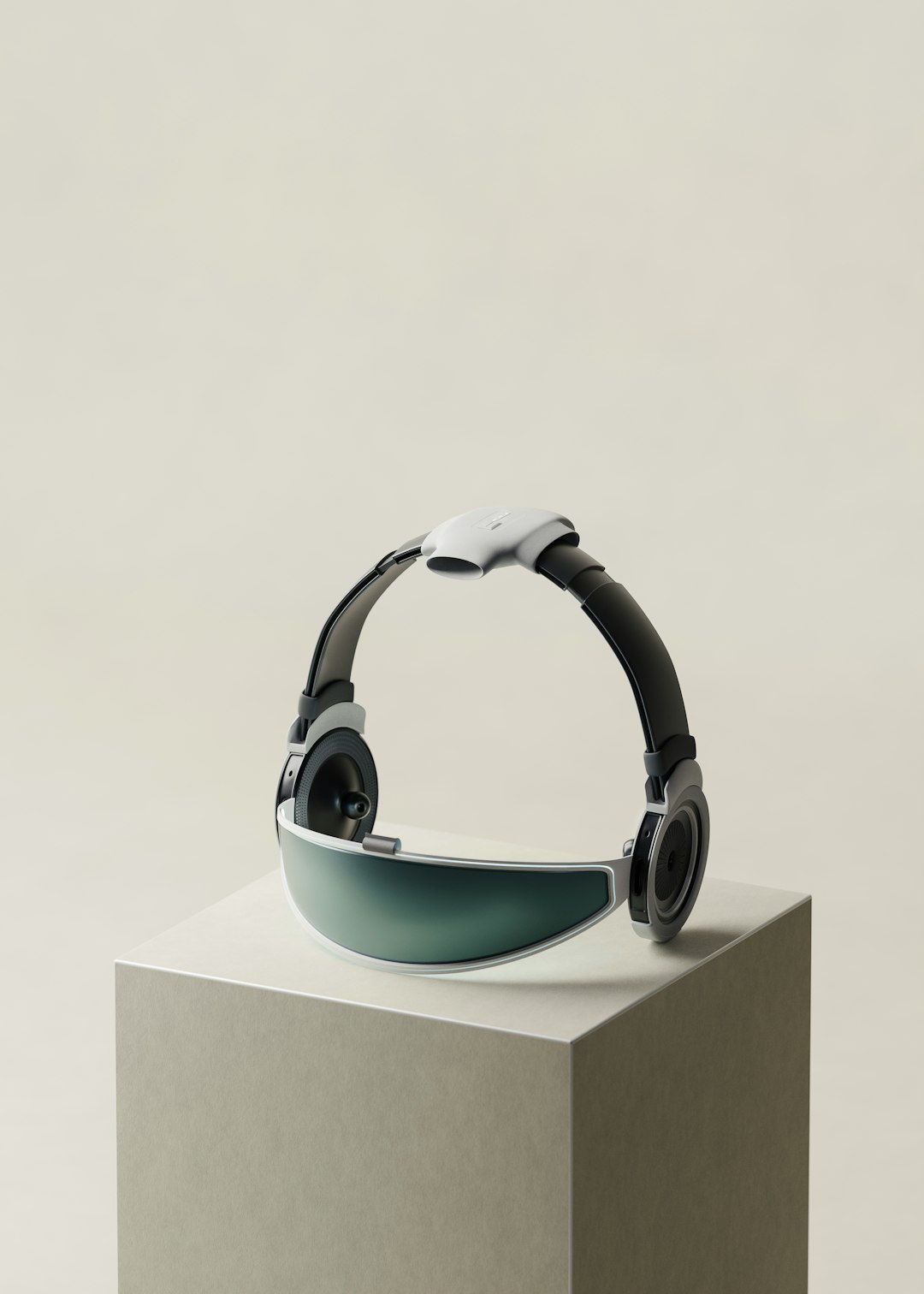
The “Failed to Terminate VRServer.exe” error is a commonly encountered issue for users of SteamVR. When VRServer.exe fails to shut down properly, it not only affects application performance but can also prevent the headset or VR applications from functioning correctly. Understanding how to resolve this error is essential for a smooth and immersive virtual reality experience.
This article walks you through tested solutions to address this problem, helping you get back into your VR environment without unnecessary frustration.
What Causes the VRServer.exe Termination Issue?
VRServer.exe is a background process used by SteamVR to handle VR communication between applications and hardware. The failure typically occurs due to:
- Conflicts with other background services or hardware drivers
- Corrupted files within the SteamVR or Steam client
- Miscommunication between VR hardware and connected peripherals
- Improper shutdown of previous VR sessions or crashes
[ai-img]vr headset, steamvr error, windows desktop[/ai-img]
How to Fix the Error
1. Use Task Manager to Manually End the Process
In many cases, simply force-closing the VRServer.exe process resolves the issue:
- Press Ctrl + Shift + Esc to open Task Manager.
- Scroll through the Processes tab to locate VRServer.exe.
- Select it, then click End Task.
- Restart SteamVR to see if the issue persists.
2. Restart SteamVR and Steam
A clean restart is often effective:
- Exit both SteamVR and Steam.
- Wait a few seconds to ensure all related processes close completely.
- Restart Steam as Administrator by right-clicking its shortcut and choosing Run as administrator.
- Launch SteamVR again.
3. Reboot Your Computer
If the error still appears, rebooting your system can help terminate lingering background processes and reset USB connections.
4. Verify Integrity of SteamVR Files
Corrupted or missing SteamVR files can trigger this error. To verify:
- Open Steam and go to Library.
- Right-click on SteamVR and select Properties.
- Go to the Installed Files tab and click Verify integrity of tool files.
- Wait for Steam to finish scanning and repairing files.
[ai-img]steamvr interface, error checking, verify files[/ai-img]
5. Update All VR Drivers and System Drivers
Outdated drivers can interfere with VRServer operations. Make sure all your system drivers, especially GPU and USB host drivers, are updated:
- Visit your GPU manufacturer’s website (NVIDIA, AMD, Intel) to get the newest drivers.
- Update USB drivers via Device Manager on Windows.
- Check for updates through Windows Update.
6. Opt-Out of SteamVR Beta
Beta versions of software often include bugs. To switch back to a stable version:
- Open Steam and go to Library.
- Right-click SteamVR, then select Properties.
- Under the Betas tab, choose None – Opt out of all beta programs.
7. Reinstall SteamVR
If all else fails, performing a clean reinstall may help:
- Uninstall SteamVR from your Steam library.
- Manually delete any leftover configuration files under:
- C:\Program Files (x86)\Steam\steamapps\common\SteamVR
Additional Tips
- Disable system overclocking if you experience frequent software crashes.
- Unplug and reconnect VR hardware before restarting SteamVR.
Frequently Asked Questions (FAQ)
- Why does VRServer.exe continue running after SteamVR is closed?
- This usually happens because of inactive background processes, connected VR headsets continuing to draw power, or improper shutdowns during sessions.
- Is it safe to manually end the VRServer.exe process?
- Yes, manually ending the process through Task Manager won’t harm your system but may end your current VR session prematurely.
- Can antivirus programs cause the VRServer.exe error?
- Yes, certain aggressive antivirus software can mistakenly block or interfere with VRServer. Consider adding SteamVR to your antivirus whitelist.
- Do I need to disconnect my VR headset to fix this error?
- In some cases, yes. Unplugging the headset and plugging it back in can reinitialize hardware detection and resolve lingering issues.
- What if none of the solutions work?
- If the error persists, consider submitting a bug report to Valve via the SteamVR feedback tool or checking forums for support from the community and developers.

